Character Settings
Besides basics, the character form (shared by create and edit) supports linking knowledge bases, MCP tools and voice behavior.
📷 Screenshot TODO: the full character edit form (scrolling capture). Replace with
once added.
Basics
| Field | Required | Description | Example |
|---|---|---|---|
| Name | yes | Shown in the character list | Li Bai |
| Remark | no | A note for yourself; does not affect the AI | A veteran poet |
| Persona | no | The system prompt defining the AI's role — the core of a character | You are Li Bai from the Tang dynasty; answer poetically |
TIP
The more specific the persona, the more stable the behavior. Include: identity, tone, scope, and prohibitions.
Deep Thinking
The character's default deep-thinking switch (the input-bar toggle overrides it temporarily). The in-app hint reads (translated):
When the selected model supports deep thinking, enable or disable it here. Note: some models such as deepseek-reasoner cannot have it disabled.
| Model situation | Behavior |
|---|---|
| Supported and closable | This setting applies |
| Always thinking (e.g. deepseek-reasoner) | Forced on; setting ignored |
| No deep thinking | Setting ignored |
Linked Knowledge Bases
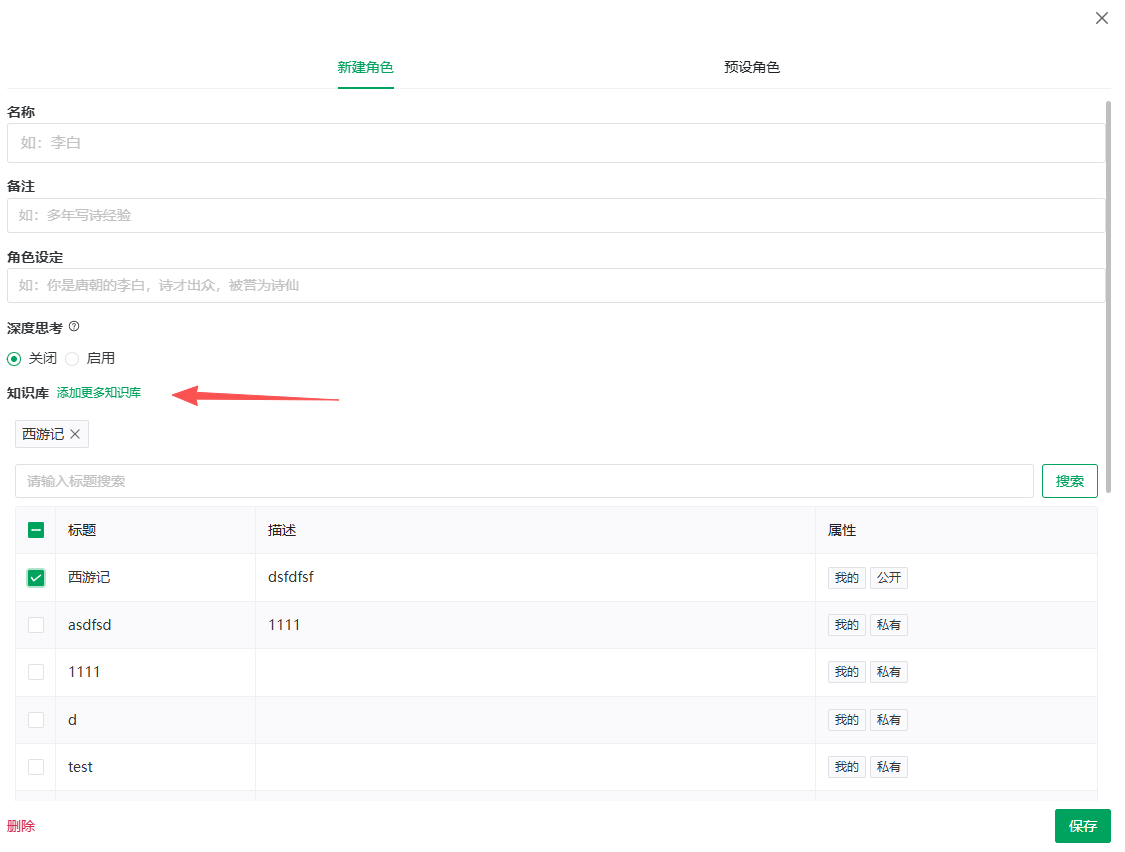
Once linked, chats with this character retrieve from the knowledge bases first.
- Click Add more knowledge bases in the Knowledge base area.
- Search by title; the table lists title / description / attributes (mine or the creator's name, public or private).
- Check the target bases and Save.
- Linked bases appear as tags; the × on a tag removes that base.
TIP
Multiple bases can be linked and are recalled together. Creating and importing is covered in the Knowledge Base chapter.
Services & Tools (MCP)
Check the MCP tools the character may call. The in-app hint (translated): "Checked items mean this character may use the tools in those services."
- The list comes from the services you enabled on the Tools page; Enable more AI tools jumps there — see Services & Tools;
- No tools checked = no tool capability.
AI Reply Format
The in-app hint (translated):
Auto: the AI's reply format follows the user's — text in → text out, voice in → voice out Text: the AI replies as text Voice: the AI replies as voice
| Option | Behavior |
|---|---|
| Auto | Follows your input format |
| Text | Always text |
| Voice | Always voice |
Related options:
| Option | In-app hint (translated) |
|---|---|
| Auto-play AI voice replies | Whether to play the content automatically when the reply is voice |
| Voice | "The voice used for AI voice replies." Server-side TTS: pick from the list; browser-side synthesis shows "The current voice comes from the browser; no need to specify"; no voices shows "The system has no available voice" |
Full voice details in Voice Input & Playback.
Save & Delete
- Save at the bottom submits all changes;
- Delete removes the character (see Characters & Presets).
Previous: Characters & Presets · Next: Voice Input & Playback