Create & Configure a Knowledge Base
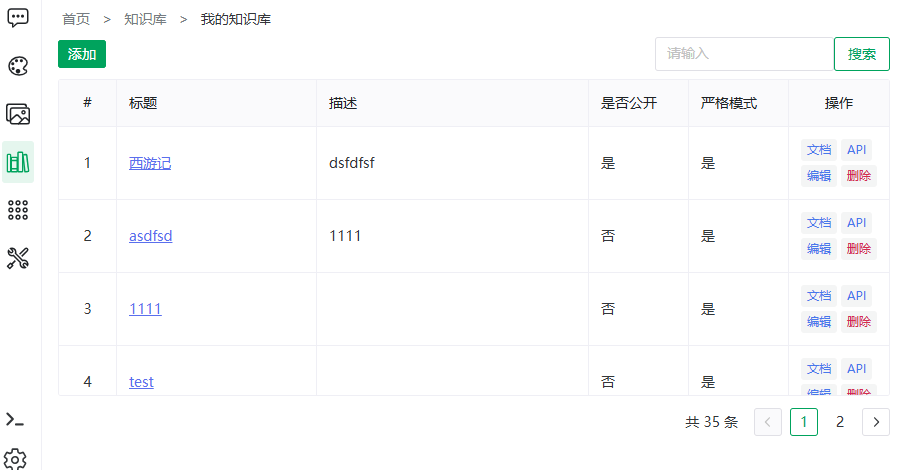
Open Knowledge Base → Knowledge base management — the "My knowledge bases" overview. The table lists title (link to detail), description, public flag, strict flag; the actions column offers Docs / API / Edit / Delete.
- The search box filters by title (Enter or click the search button);
- The table paginates at the bottom ("{n} items in total").
Creating a Knowledge Base
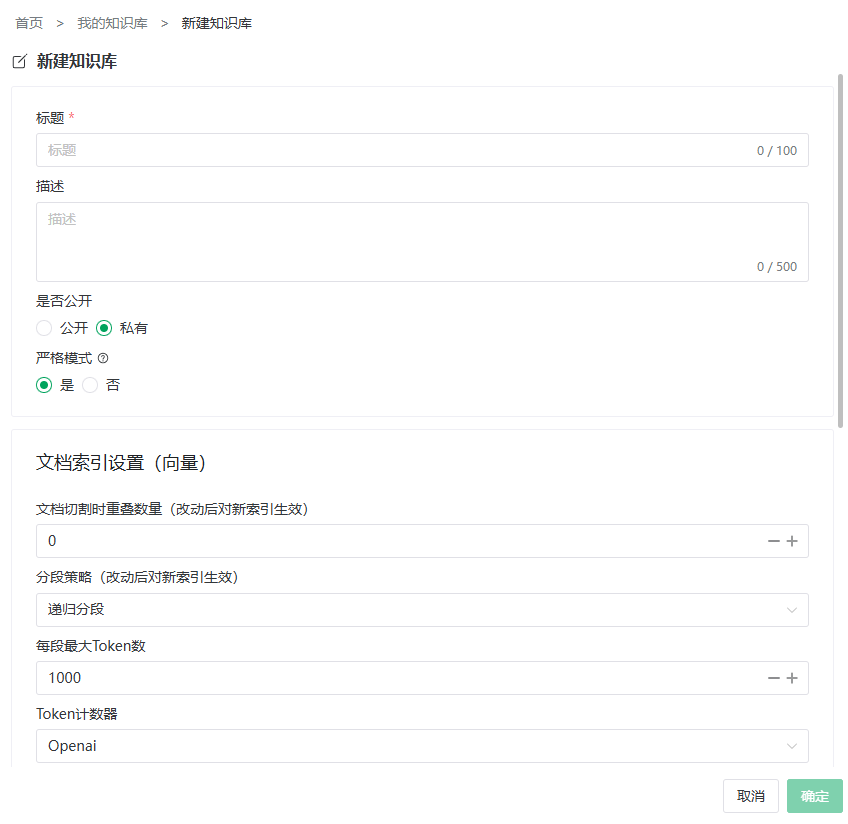
- Click Add to open the form (five settings cards);
- Fill in each group as described below;
- Save and return to the list.
TIP
For a first base, only the title is required — start importing with defaults; segmentation and retrieval settings can be changed later (segmentation changes take effect for subsequent indexing only; see below for rebuilding existing documents).
1. Basics
| Field | Required | Description |
|---|---|---|
| Title | yes | Name of the knowledge base |
| Description | no | Purpose, visible to others when public |
| Public | no, default private | Public: visible and usable by everyone; private: creator only |
| Strict mode | no, default lenient | Strict: returns "no answer" directly when nothing relevant is retrieved, never invents one; Lenient: hands the question to the LLM for a free-form answer when nothing is retrieved. See Overview |
2. Document Segmentation Settings
These parameters are knowledge-base-level; they apply to the segmentation of every document in the base (the document edit page shows the effective segmentation config read-only, per the document's segmentation mode).
| Field | Description |
|---|---|
| Segment overlap length | Content shared by adjacent segments (marked "applies to new indexing after change") — keeps boundary information intact; validated on save to be smaller than the max segment length (the effective backend cap is half of it) |
| Segmentation strategy | Recursive / by paragraph / by line / by sentence / custom separator (required when custom, e.g. \n\n, \n) |
| Max segment length | Upper bound of a segment, range 100–10000; longer content keeps splitting; Q&A generation also splits the source text at this size |
| Token estimator | OpenAI / Qwen / Huggingface counting conventions — match your embedding model family |
NOTE
Saving a change to these parameters takes effect for subsequent indexing only (newly uploaded documents and later re-splits follow the new parameters) and never affects existing segments; generated Q&A pairs pick up the new parameters only when regenerated. Rebuild Vectors only recomputes vectors and never re-splits segments (see Import Documents · Full Rebuild); to re-split one document with the new parameters, edit that document (change its content or switch its mode). How the segmentation settings combine with the document-level segment mode: Overview · Segmentation Settings vs Segment Mode.
TIP
"By paragraph" suits well-structured documents; "recursive" is the general default; tables and logs suit "by line" or a custom separator.
3. Indexing Model Settings
Model: the model shared by graph extraction and Q&A-pair generation; if empty, the first available model is used.
WARNING
Graph extraction and QA generation both consume this model's tokens. Pick a cost-effective model; leaving it empty falls back to the first available model.
4. Retrieval Settings
| Field | Description |
|---|---|
| Max retrieved | Maximum segments recalled per query — higher is more thorough but costs more |
| Min score | Segments below this similarity are excluded — higher is stricter and filters out more noise |
5. LLM Parameters
| Field | Description |
|---|---|
| System prompt | Persona for knowledge base Q&A (e.g. "You are the company policy assistant; answer only from retrieved content") |
| Creativity / randomness | Answer temperature: lower = more conservative, higher = more varied |
Editing
Click Edit in the actions column. Note the consequences:
| Change | Effect |
|---|---|
| Retrieval settings, LLM parameters | Immediate, no rebuild |
| Segmentation parameters (overlap / strategy / max length…) | Takes effect for subsequent indexing only — existing segments are untouched; re-split a single document by editing it (see Full Rebuild) |
API
The API action (actions column, or the top-right of the knowledge base detail page) generates this base's API key and endpoint docs — see API Reference · Knowledge Base Q&A.
Deleting
- Click Delete in the actions column;
- Confirm "The data cannot be recovered after deletion. Delete knowledge base [{title}]?".
WARNING
Deleting removes documents, segments, vectors and graphs — irrecoverable. Characters linked to the base lose its retrieval.
Previous: Overview · Next: Import Documents