Chat Window
The chat window has three parts: the character list on the left, the message area in the middle, and the input area at the bottom. Each character keeps its own history — switching characters switches the conversation.
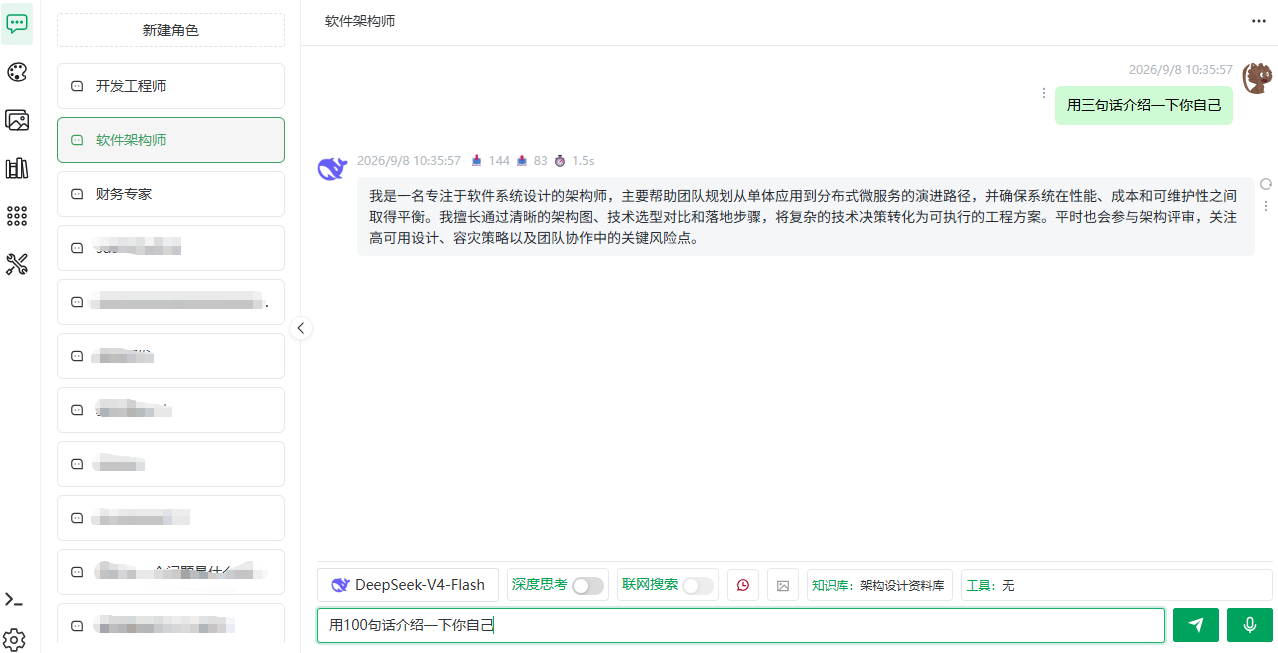
Sending Messages & Streaming Answers
- Type a question in the input box.
- Press Enter (or click send).
- The answer streams in. Status hints appear in order: Analyzing question → Searching knowledge base (when linked) → Reasoning → Answering.
- Click Stop to interrupt; you can regenerate afterwards.
TIP
A scroll to bottom button appears at the bottom of the message area for long conversations.
Deep Thinking
Click the Deep thinking toggle in the input bar (highlighted = on).
- Answers show the reasoning process before the final result — good for math, reasoning and code;
- Some models (e.g. deepseek-reasoner) always think and cannot be turned off; models without support disable the toggle with a hint;
- A per-character default can be set in Character Settings.
Web Search
Click the Web search toggle in the input bar.
- Answers reference search engine results — good for time-sensitive questions;
- Availability depends on the model.
WARNING
DeepSeek's deep thinking is mutually exclusive with tools/web search: enabling both auto-disables one with a hint.
Multiple Answers
After regenerating, multiple answers to the same question appear as "Answer 1 / Answer 2 …" tabs for comparison.
Message Actions
| Action | Description |
|---|---|
| Copy / Copy code | Copy the whole answer or a single code block |
| Delete | Deleting a question also deletes its answers (confirmation required) |
| Regenerate | Re-run the question (tabs form multiple answers) |
Uploading Images (Vision)
- Make sure a vision (multimodal) model is selected — the button is unavailable otherwise (hover hint: "The model does not support image recognition");
- Click the upload button (hover hint: "Upload an image to recognize its content") and pick a local file;
- The image is sent with your question.
| Limit | Value |
|---|---|
| Formats | PNG, JPG |
| Size | ≤ 4MB each |
| Visibility | Vision models only |
Knowledge Base & Tool Tags in the Input Bar
Adjust the character's linked resources without opening the character form:
- Knowledge base: click the "Knowledge base:" tag and check/uncheck bases in the dialog — takes effect immediately;
- Tools: click the "Tools:" tag to configure MCP tools.
NOTE
Both only affect the current character and stay in sync with the Character Settings form.
Context Understanding
The context icon in the input bar controls whether history is sent (hover: "Context understanding enabled/disabled"):
| State | Behavior (in-app hint) | Good for |
|---|---|---|
| On (default) | "Messages are sent with the previous chat history" | Multi-turn follow-ups |
| Off | "Messages are sent without the previous chat history" | One-off questions, saving tokens |
Memory & Citations
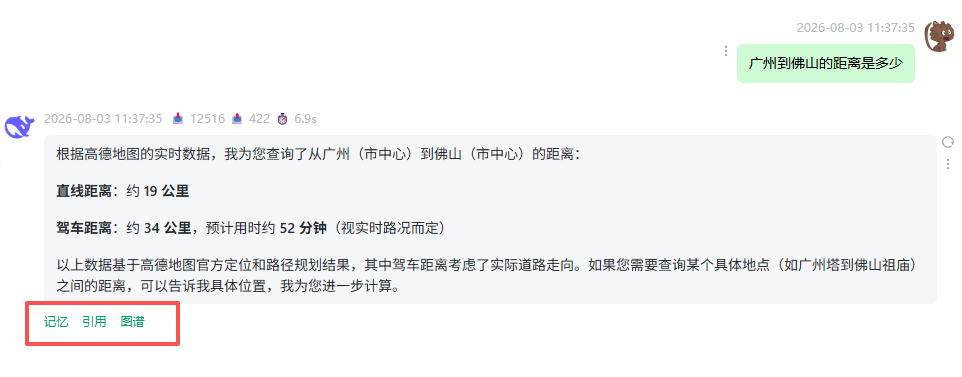
Three buttons under each answer let you check its sources:
| Button | Content |
|---|---|
| Memory | Long-term memories hit by this answer, grouped into semantic / episodic |
| Citations | Hit knowledge base segments per segmentation mode: Q&A shows the hit question and answer; parent-child shows the hit child chunk and its parent; plain shows the segment text |
| Graph | Knowledge graph fragments referenced by the answer |
TIP
Empty citations mean the answer used no knowledge base content (or the character links none). See Knowledge Base Overview.
Voice Input
Click the mic icon to ask by voice — the recording is transcribed and sent automatically. Full details in Voice Input & Playback.
Top Bar Actions
- Edit: open the current character's edit form (same as the pencil icon on hover);
- API: view/manage this character's open API key and endpoint docs — see API Reference · Character Chat.
Previous: Quick Start · Next: Characters & Presets