Drawing
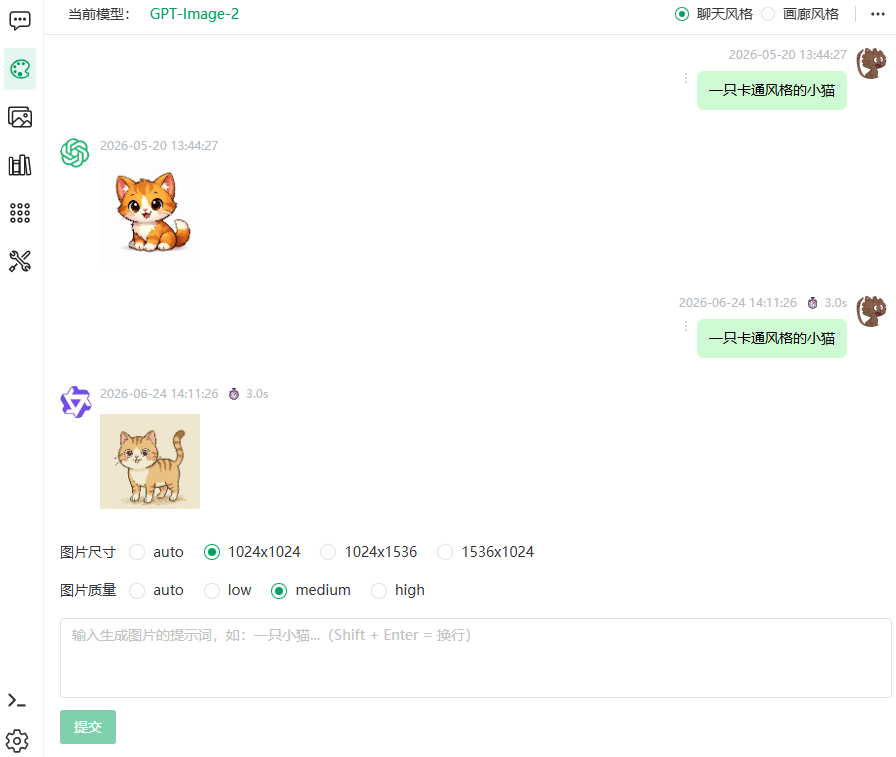
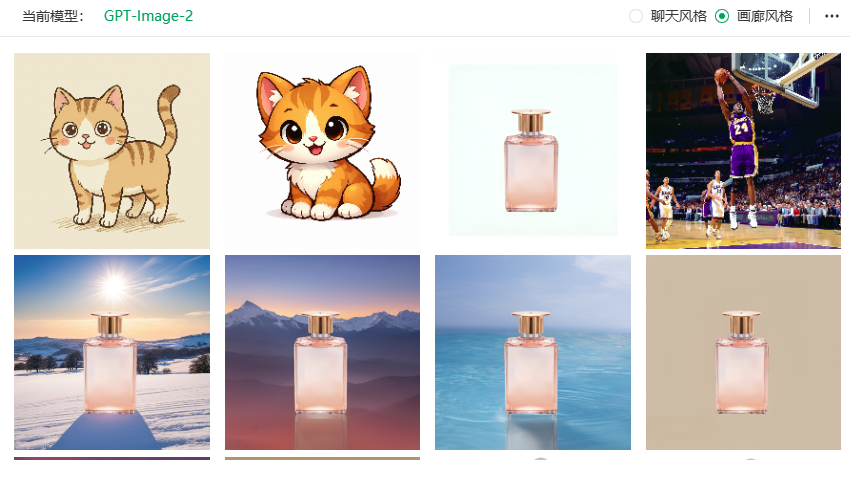
On the Draw page: pick an image model at the top, fill in the prompt editor (which changes shape per platform), and review my drawing history below.
Generation Flow
- Pick a model in the image model selector — all platforms share one editor; the parameter section follows the selected model's configuration;
- Describe the image in the prompt box (Chinese or English);
- Adjust editor parameters as needed (size, count, seed — see below);
- Click generate; the task is submitted asynchronously;
- Images appear in my drawing history when done — you can leave the page while it runs.
Editor Parameters
All platforms share one editor; the parameter section shows up per the selected model's configuration. Click the arrow at the section's bottom-right corner to collapse/expand it (collapsed, only the prompt box remains, leaving more room for the image list above):
| Parameter | Shown when | Description |
|---|---|---|
| Size | the model declares size options | Determined by the selected model's configuration |
| Number | the model supports multiple images | Slider for images per run |
| Quality | the model declares quality options | auto / low / medium / high (higher = finer, slower and more expensive) |
| Seed | the model supports seed | Fixed seed reproduces results; -1 means random |
| Reference images | the model declares image input | See "Image-to-image (reference images)" below |
Image-to-image (reference images): with reference images uploaded, the model edits them according to the prompt; without them it is plain text-to-image. The upload limit comes from the model's configuration (Wan2.7-Image: 9, Qwen-Image-3.0: 3, GPT-Image-2: 4, Kolors: 1); jpg/png/webp are accepted. Reference images are relayed by the server, so both local file storage and OSS work — no public accessibility required.
Supported image models (enable them in the admin console → Model Management)
| Model | Platform | Positioning |
|---|---|---|
| Wan2.7-Image | DashScope | All-round generation & editing flagship: full-chain editing (storyboards, interactive editing); up to 4K for T2I, 2K for editing |
| Qwen-Image-3.0 | DashScope | Design productivity: complex layouts, image-in-image, high-fidelity text rendering (10px text, 12 languages) for posters/web/UI |
| GPT-Image-2 | OpenAI | Text-to-image and image editing; offers quality options |
| Kolors | SiliconFlow | Free model; text-to-image and image-to-image (a single reference image) |
My Drawing History
- Reverse chronological, infinite scroll, "No more" at the end;
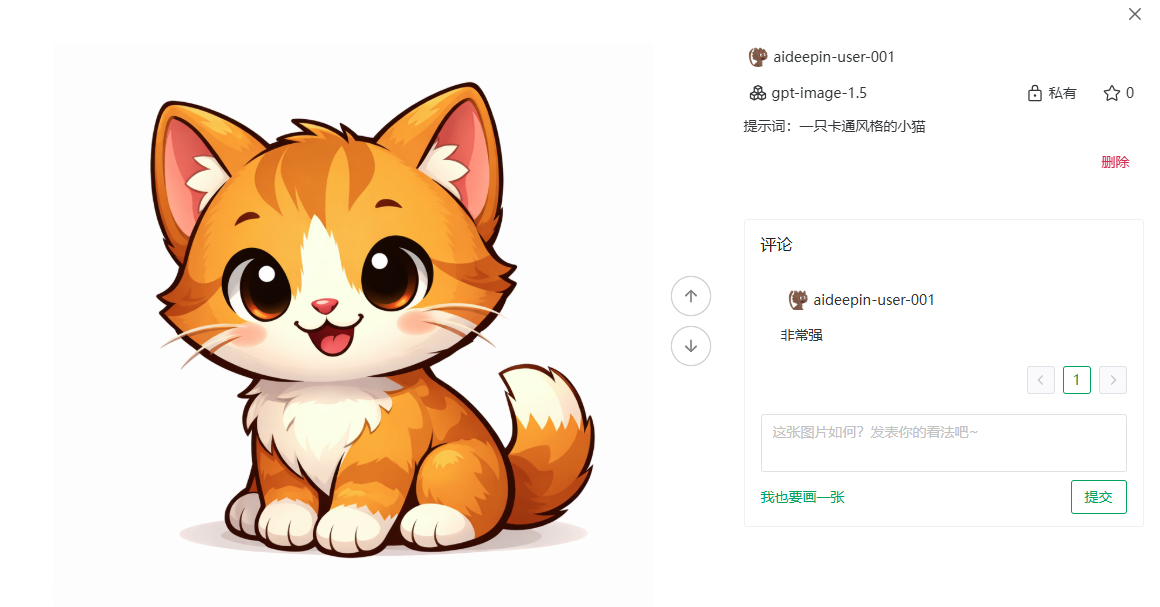
- Click a record for the detail view: prompt and reference images (shown for image-to-image records; early "background generation" records show the original/guidance images), comments, I'll draw one too (reuse the prompt), previous / next record navigation ("No previous/next one" at the ends).
Management
| Action | Where | Description |
|---|---|---|
| Delete task | Record's more menu | Deletes the prompt and all images it generated (the confirmation lists what will be deleted) |
| Delete one image | On the image | Removes just that image, keeping the prompt and others |
| Public / private toggle | On the record | Public images enter the gallery ("Public access enabled"); off restores private ("External access disabled") |
TIP
To share your work, set it public — it appears in the Gallery under "Public images", where others can like and comment on it.
API
More → API in the top bar generates a draw API key and endpoint docs for integrating text-to-image into your own program (create + poll), see API Reference · Draw Tasks.
Previous: Voice Input & Playback · Next: Gallery