Apps & Workflows
The Apps menu item is the workflow feature: visually orchestrate processing nodes into automated AI flows (translation, FAQ extraction, multi-step content generation), run them repeatedly, or trigger them via API.
My Apps
- The sidebar has Mine / Public tabs;
- Click an entry to open it; hovering shows the edit entry.
Creating an App
- Click New App;
- Fill in the form:
| Field | Description |
|---|---|
| Node | Display name |
| Title (required) | App name, e.g. "Translator" |
| Remark | Purpose |
| Public | Others can see and copy it once public |
- Confirm to enter the app page.
Editing / Deleting an App
Buttons in the edit dialog:
| Button | Description |
|---|---|
| Update | Save changes to the current app |
| Save as new | Save as another new app |
| Delete | Confirms "Inputs and outputs will be deleted together. Continue?" — run history goes too |
NOTE
Non-creators opening a public app get view-only mode — the save button is disabled with "Only the workflow's creator can save". To modify someone else's app, use Copy in the more menu to get your own editable copy.
Layout
Top bar: app title, the Workflow ↔ Requests view switch (hover: "Switch to flow / request list"), and the more menu (Edit / View, Copy, API).
- Workflow view: the canvas editor;
- Requests view: the run history of this app.
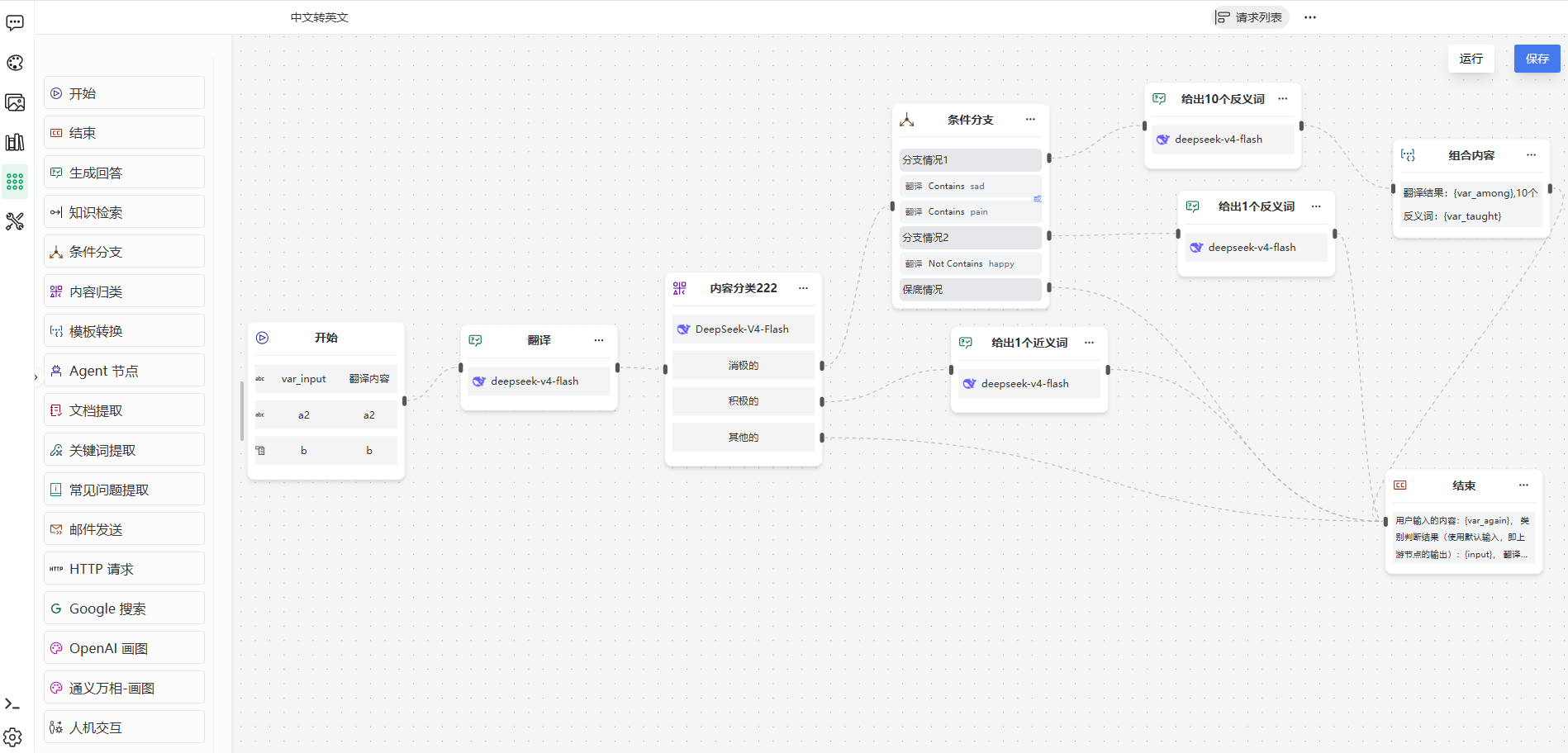
Editing a Workflow
- Edit in the top-bar more menu enters edit mode;
- Drag nodes from the left node panel onto the canvas (grouped by component);
- Connect nodes into a flow;
- Select a node and configure it in the right properties panel (name + component description + parameters);
- Run tries the flow on the canvas; Save persists; Re-layout re-arranges node positions;
- Delete nodes via their own delete action.
WARNING
Only one start node is allowed — dragging a second one triggers a warning. The start node is the flow's only entry.
Variable References (prompt boxes, general rule)
Input boxes with the variable icon (prompts, query content, mail subjects…) support variables; the grey hint above the box reads:
- Use curly braces to reference variables defined in Inputs, e.g.
{var_name1}; - Use
{input}to reference the default execution result of the previous node.
Available Nodes (17)
Basic nodes
Start
Defines input variables (+Add variable): name, label, type (text / number / file / boolean), required, multiple, max files (file type); plus an opening message.
End
Assembles the output (variables allowed); default "Task completed".
Generate answer
LLM reply. Prompt tooltip (translated): "If empty, the output of the previous node is used as the prompt".
Human interaction
Pauses for user input; "pre-input hint" is shown while paused.
AI nodes
Agent
Autonomous node: pick a role; prompt (empty = previous node's output); capability switches RAG / MCP tools / web search ("The model does not support web search" beside the switch when unsupported).
Image generation
Model picker (image models from all platforms), prompt (empty = previous output), size (follows the selected model's configuration), quality and seed (shown per the selected model's capabilities, + "Random generate"); text-to-image only, no reference images.
This node covers what the early "OpenAI image" node offered and is recommended for new workflows; the "OpenAI image" node remains available on upgraded deployments (not seeded on fresh ones) and saved workflows are unaffected.
Document extraction
Extracts text from uploaded files. Without a file input on start: "The start node has no file-typed parameter; add one first".
Keyword extraction
Model + keyword count.
FAQ extraction
Model + question count, country/region, language.
Classification
Model + categories (name per class), each routed to a next step.
Knowledge nodes
Knowledge retrieval
Searches the selected knowledge base:
| Parameter | Description |
|---|---|
| Knowledge base | The base to search |
| Query content | Variables allowed |
| Top-k | Slider |
| Min score | Slider |
| Strict mode | Tooltip (translated): "Strict: strictly match the knowledge base; no result → 'no answer'. Lenient: no result → pass the question to the LLM." |
| Default reply | Tooltip: "Used when there is no answer" |
Logic nodes
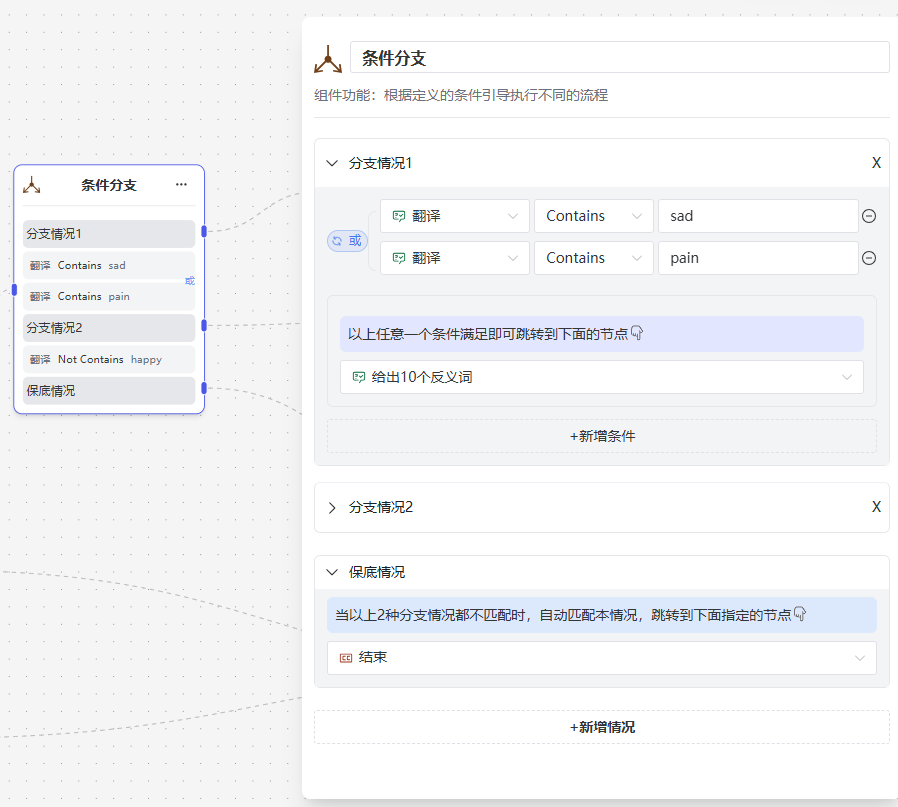
Condition
- Each condition group is AND / OR:
- AND: "Jumps to the node below when all conditions above are met";
- OR: "Jumps to the node below when any condition above is met";
- Fallback: "When none of the {count} branch cases above match, this case applies automatically and jumps to the node specified below";
- At least one condition and one branch case must remain (validated on delete).
Template
Composes text from a template with {var}, {input}.
Integration nodes
HTTP request
Timeout (s), retries, headers (+add), params (+add), Content-Type; Strip HTML tooltip (translated): "Turn it on if the response is HTML and only the main content is needed."; output variables: status_code (HTTP status code), output (response body).
Email
Sender (system / custom); custom: SMTP server (e.g. smtp.exmail.qq.com), port, sender name / email / password; recipients (required, comma-separated), cc, subject (required), body (required, variables allowed).
Google search
Query (tooltip: empty = previous node's output), result count, country/region, language.
Running & Requests
- Run on the canvas (or launch from the app page): fill the start node's inputs (files: TXT, PDF, DOC, DOCX, XLS, XLSX, PPT, PPTX, ≤ 10MB);
- A request record is created; the requests list pages through history;
- Click for the execution detail: each node's inputs/outputs, file previews (download offered when inline preview is unsupported);
- Flows with a human interaction node pause with "Paused, waiting for user input…" plus the configured hint; type text in the input box to resume (file inputs are only available in the flow's start section);
- Records can be deleted or cleared ("Inputs and outputs will be deleted together. Continue?").
TIP
When debugging, run small inputs end to end first, then inspect each node's inputs/outputs in the detail view to locate the problematic node.
API
The API item in the more menu generates this app's API key and docs; trigger externally with POST /ext/v1/workflow/run — see API Reference · Workflow.
Previous: Knowledge Base Q&A · Next: Services & Tools