Import Documents
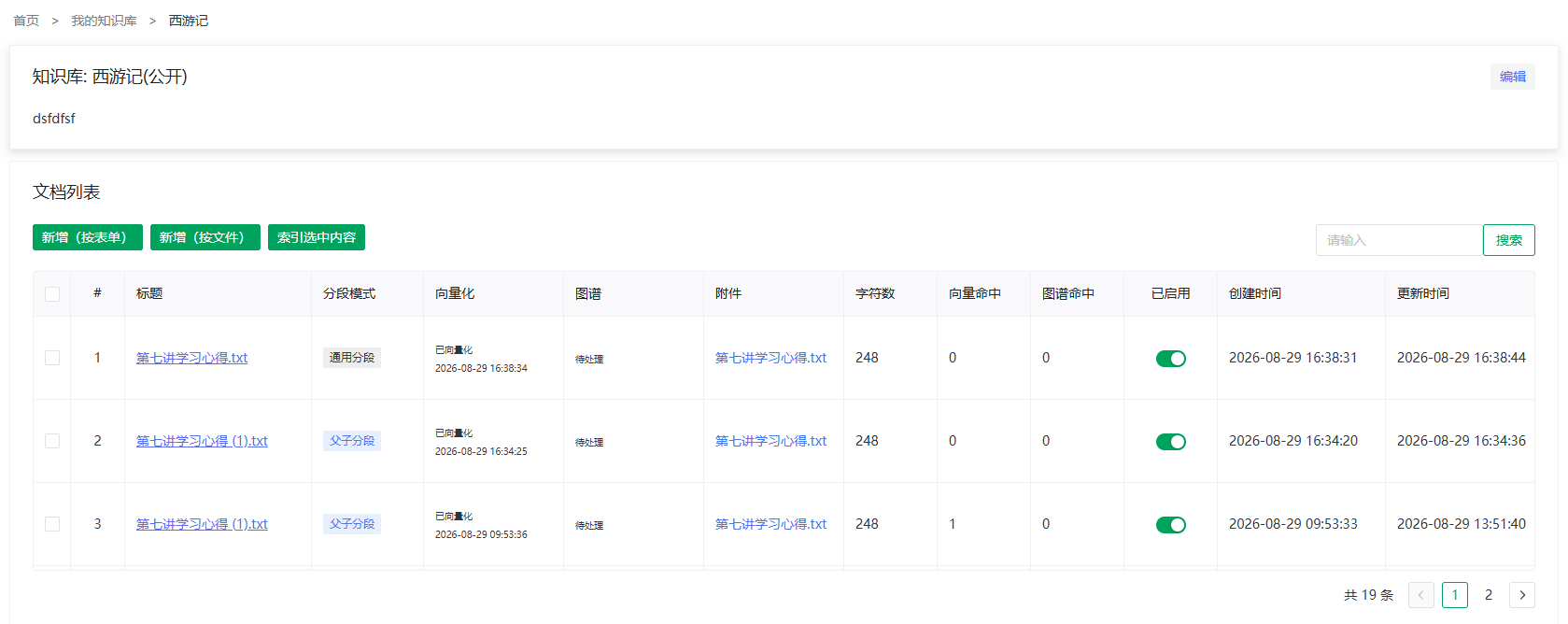
From "My knowledge bases" click the title or Docs to open the knowledge base detail (document list). The toolbar offers two ways to add:
- Add (form): type title, summary and body — for single short pieces;
- Add (file): batch upload — for importing existing files.
Uploading Files
- Click Add (file) to open the dialog (card title "Upload documents to generate documents").
- Pick the segmentation mode. The grey hint under the dropdown changes with the mode; in-app texts (translated):
| Mode | In-app hint (translated) |
|---|---|
| Plain | Plain: for continuous content (articles, manuals); splits per the base's segmentation settings and each segment is vectorized and recalled directly |
| Q&A | Q&A: for FAQ-style content organized as pairs; questions are vectorized and recalled, answers returned as-is |
| Parent-child | Parent-child: for long documents; children match precisely and the hit returns the parent as full context |
- Q&A accepts XLSX / XLS / CSV only (with template download); each file becomes one standalone Q&A document named after the file — format details in Q&A Import & Generation;
- Parent-child shows child chunk max length, hint (translated): "The parent is split into children of this size; children match precisely and the hit returns the parent as full context; range 50–4000, default 200; changes take effect on re-vectorization";
- Plain follows the base's segmentation settings, no extra parameters (the document edit page shows the effective segmentation config read-only).
- Drag files into the upload area (or click to browse).
| Limit | Value |
|---|---|
| Formats | TXT, PDF, DOC, DOCX, XLS, XLSX, PPT, PPTX |
| Size | ≤ 10MB each |
| Count | At most 20 per batch |
- Click Upload and generate documents. Documents appear in the list with vector status pending.
📷 Screenshot TODO: the upload dialog (mode selection + drop area). Replace with
once added.
TIP
Scanned (image-only) PDFs cannot be text-extracted — import ends with 0 characters and nothing retrieved. OCR them first.
Adding by Form
Click Add (form) for the document edit page: title, summary, body and segmentation mode — see Editing a Document. In Q&A mode you can also upload a QA file or enable AI generation, see Q&A Import & Generation.
Indexing
Uploading only creates documents and segments — they become retrievable once indexed:
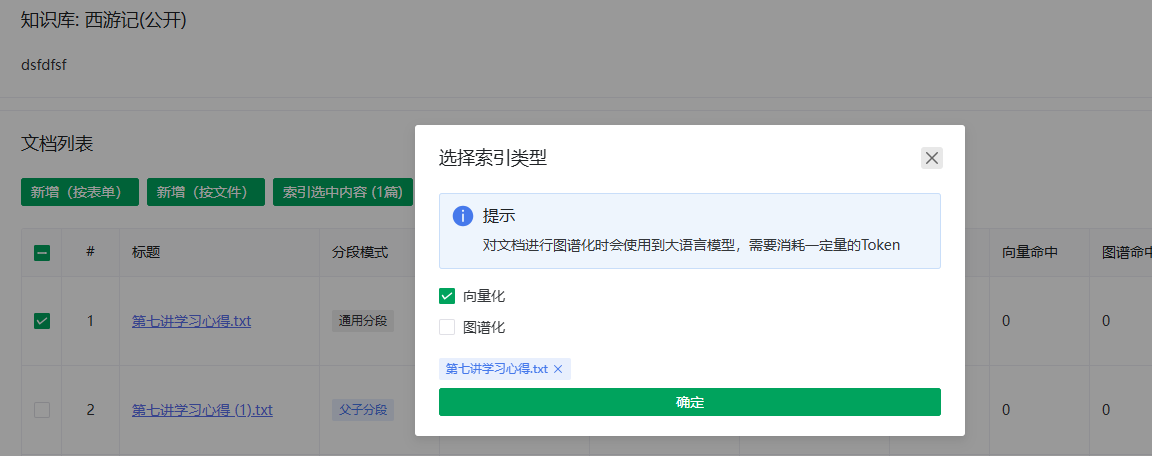
- Check one or more documents in the list;
- Click Index selected (N);
- Choose index type(s): vectorize / graph (both allowed). The dialog's in-app note (translated):
NOTE
"Graphing documents uses a large language model and consumes a certain amount of tokens" — vectorize first to validate retrieval, then graph as needed.
- Confirm — "Index task running in background"; the list polls every 3 seconds.
Un-graphed documents can be indexed later from the segment management page's document card.
Full Rebuild
Rebuild Vectors recomputes the vectors of all existing targets from their current segments — segment content and Q&A pairs are not changed (Q&A documents re-embed their questions) — useful after switching the embedding model, when vector status drifts, or for batch repair; Rebuild Graph deletes the old graph and re-extracts. Semantically identical to the vector/graph rerun of "Index selected"; the difference is scope — full rebuild applies to the whole base or one document in a single click. Two levels of entry, each split into the vector and graph dimensions:
| Entry | Where | Action |
|---|---|---|
| Rebuild Vectors / Rebuild Graph (base-level) | Knowledge base detail page title bar | Applies to every document (documents without segments yet are split with the current segmentation settings, then vectorized) |
| Rebuild Vectors / Rebuild Graph (document-level) | Segment management page document card | Applies to that document only |
WARNING
Vector rebuilds consume embedding quota and graph rebuilds consume the indexing model quota; large bases take a while (segment content is untouched). Changing the knowledge base's segmentation parameters never affects existing segments — parameters apply to subsequent indexing only; to re-split one document with new parameters, edit that document (save a content change, switch its segment mode or child chunk size).
Document List Columns
| Column | Description |
|---|---|
| Segmentation mode | Plain / Q&A / parent-child tag |
| Vector status | Not started / processing / success / failed; click Success/Failed for the completion time / failure reason |
| Graph status | Not started / processing / success / failed; click Success/Failed for the completion time / failure reason |
| Attachment | The uploaded file; click to preview |
| Characters | Body length — the first indicator of healthy parsing |
| Vector hits / graph hits | How often this document's segments were recalled — long-standing 0 means content doesn't match questions |
| Enabled | Toggle. Off = excluded from retrieval (consequences in Segment Management) |
| Created / updated | Recent changes |
Actions: Details (document detail page with segment management and graph entry), Edit, Delete.
After checking multiple rows, the toolbar Delete (N items) removes the selected documents in bulk (segments, vectors and graphs included — irrecoverable; disabled with nothing checked), grouped with Index selected as selection-based bulk actions; the per-row Delete remains for quick single deletes. To view or generate a document's graph, use the document card on the segment management page.
Editing a Document
Via Edit in the actions column (or when adding by form):
| Field | Description |
|---|---|
| Title / summary / body | The body feeds segmentation and indexing |
| Segmentation mode | A bold always-on note under the mode hints: switching discards existing segments and vectors and rebuilds in the new mode; the graph is not rebuilt automatically and must be re-extracted manually |
| Segmentation config | Lists the effective chunking params per mode: paragraph / parent / QA segment max length, segment overlap length, chunking strategy (custom separator shown when custom); parent-child mode edits child chunk max length here; Q&A mode notes that questions and answers need no length setting; a "(inherited from knowledge base settings)" note beside the block title; only the "knowledge base settings" words link to the edit page |
- Q&A-mode extras (AI generation, QA file import): see Q&A Import & Generation;
- Saving body edits re-vectorizes affected segments automatically.
WARNING
In Q&A mode, editing the body does not affect generated pairs. Update pairs via the pair list or AI regeneration (which clears existing pairs).
Previous: Create & Configure · Next: Q&A Import & Generation